Active Directory Phase 5: Group Policy and Application Control
Purpose
Use Group Policy to centrally restrict a Windows application for a selected AD security group. This demonstrates how an organization can combine computer placement, group membership, and application-control rules without changing protected Windows file permissions.
The initial exercise restricts Registry Editor for members of GG-Lab-Users
on computers in Lab\Workstations. It reuses the existing everyday user and
group; no additional identity is required.
Concepts used in this phase
Group Policy Object
A Group Policy Object, or GPO, is a centrally stored collection of Windows configuration settings. A GPO does nothing until its scope causes it to apply to a user or computer.
GPO link and OU scope
Linking the GPO to Lab\Workstations delivers its computer-side settings to
computer objects in that OU. Moving a computer outside the OU changes whether
that linked policy is in scope.
Security group targeting
The AppLocker rule names GG-Lab-Users as its affected principal. The GPO
reaches the workstation through its OU, and AppLocker then checks whether the
person launching the application belongs to that group.
AppLocker
AppLocker is Windows application-control technology that can allow or deny executables, scripts, installers, DLLs, and packaged applications according to rules. It is safer and more maintainable than changing access-control entries on files inside the Windows directory.
Audit versus enforcement
Audit only records what a rule would do without blocking applications. Enforce rules actively allows or denies execution. Organizations normally audit and review events before enforcement to reduce the risk of blocking required software.
Application Identity service
The Application Identity service identifies files for AppLocker. The service must run on the workstation or AppLocker rules are not enforced.
Default rules
Once an AppLocker rule collection contains a rule, applications in that collection must match an allow rule or they are blocked when enforcement is enabled. Default executable rules preserve normal Windows and Program Files operation and allow local administrators to recover.
Approved first policy
| Item | Selection |
|---|---|
| GPO name | GPO-Workstation-AppLocker |
| Link | Lab\Workstations |
| Rule collection | Executable rules |
| Initial mode | Audit only |
| Current mode | Enforce rules |
| Restricted group | GG-Lab-Users |
| Test application | C:\Windows\regedit.exe |
| Rule action | Deny |
| Rule condition | Publisher, scoped to the regedit.exe file name |
| Recovery identities | Local administrator and named domain administrator |
A deny rule takes precedence over an allow rule for a matching user. The named
domain administrator is deliberately not a member of GG-Lab-Users, and the
local administrator remains available if policy troubleshooting is required.
Do not use Windows Explorer, Command Prompt, PowerShell, the Settings app, or a security tool as the first blocked application. Registry Editor provides a clear, reversible test without preventing ordinary desktop use.
A publisher condition is used because Registry Editor is Microsoft-signed. It continues to identify the application after Windows updates and if the file is copied to another path; a simple deny-by-path rule would be easier to bypass.
Phase sequence
- Create and link the workstation AppLocker GPO.
- Configure the Application Identity service and audit-only enforcement.
- Create the default executable allow rules.
- Add a group-targeted deny rule for Registry Editor.
- Apply policy and inspect the AppLocker audit event.
- Change only the executable collection to enforced mode.
- Confirm the everyday user is blocked and an administrative recovery identity remains unaffected.
- Document rollback and retain the validated restriction as the current lab policy.
Step 1: Create the audit-only AppLocker foundation
On DC-05, sign in with the named domain-administrator account.
Create and link the GPO
- Open Server Manager > Tools > Group Policy Management.
- Expand Forest: ad.arphaxad.dev > Domains >
ad.arphaxad.dev >
Lab. - Right-click the
WorkstationsOU and select Create a GPO in this domain, and Link it here. - Name it
GPO-Workstation-AppLockerand select OK. - Confirm the new GPO appears under the
WorkstationsOU link list.
Configure the Application Identity service
- Right-click
GPO-Workstation-AppLockerand select Edit. - Browse to Computer Configuration > Policies > Windows Settings > Security Settings > System Services.
- Open Application Identity.
- Select Define this policy setting.
- Set the service startup mode to Automatic, then select OK.
Configure audit-only executable rules
- In the same editor, browse to Computer Configuration > Policies > Windows Settings > Security Settings > Application Control Policies > AppLocker.
- Right-click AppLocker and select Properties.
- Under Executable rules, select Configured and choose Audit only.
- Leave the other rule collections unconfigured and select OK.
- Right-click Executable Rules and select Create Default Rules.
- Confirm the three default executable allow rules appear.
Do not create the deny rule or enable enforcement yet. The audit foundation is applied and tested first.
Validation on August 18, 2026 confirmed the GPO link, Application Identity service policy, audit-only executable collection, and three default executable rules.
Step 2: Create and audit the group-targeted deny rule
Create the publisher rule
On DC-05, edit GPO-Workstation-AppLocker and return to AppLocker >
Executable Rules.
- Right-click Executable Rules and select Create New Rule.
- On Before You Begin, select Next.
- On Permissions, set Action to Deny.
- Select Select, enter
GG-Lab-Users, use Check Names, and select OK. - Select Next, choose Publisher, and select Next.
- Select Browse, then choose
C:\Windows\regedit.exeonDC-05as the signed reference file. - Move the publisher-rule slider to File name so the rule identifies
regedit.exeacross versions without denying every Microsoft or Windows application. - Select Next, add no exceptions, and select Next again.
- Name the rule
Deny Registry Editor - GG-Lab-Usersand select Create. - Confirm the rule shows Deny and
GG-Lab-Userswhile the executable collection remains Audit only.
Why: the GPO is scoped by the workstation OU, while the rule is scoped by the user's security group. Both conditions must be true for this rule to affect an application launch.
Apply and test the audit policy
- Restart the Windows client. This processes computer policy and starts the Application Identity service without requiring a long update command.
- Sign in with the everyday domain account, which is a member of
GG-Lab-Users. - Search for and open Registry Editor, then close it.
Registry Editor should still open because the executable collection is in Audit only mode.
Why: audit mode lets an administrator observe the effect of a proposed rule before users are disrupted.
Inspect the AppLocker event
- Open Event Viewer on the client.
- Browse to Applications and Services Logs > Microsoft > Windows > AppLocker > EXE and DLL.
- Find the warning for
regedit.exe, normally Event ID 8003. - Confirm its message says the file was allowed but would have been prevented if AppLocker enforcement were enabled.
Why: the audit event proves that the client received the GPO, AppLocker evaluated the user's group membership, and the rule matched the intended application. Only then is it reasonable to enable enforcement.
The client recorded Event ID 8003 for Registry Editor on August 18, 2026.
The event confirmed that regedit.exe was allowed in audit mode but would be
blocked under enforcement.
Step 3: Enforce and validate the restriction
Enable enforcement
On DC-05, edit GPO-Workstation-AppLocker:
- Browse to Computer Configuration > Policies > Windows Settings > Security Settings > Application Control Policies > AppLocker.
- Right-click AppLocker and select Properties.
- Under Executable rules, keep Configured selected and change Audit only to Enforce rules.
- Select OK and close the editor.
Why: enforcement is enabled only after the audit event proves the rule matches the intended user and application. This follows the change pattern of observe, assess, enforce, and verify.
Test the everyday user
- Restart the Windows client to process the updated computer policy.
- Sign in with the everyday domain account.
- Attempt to open Registry Editor.
Expected result: Windows displays a message that the application was blocked by the system administrator and Registry Editor does not open.
- Open Event Viewer > Applications and Services Logs > Microsoft > Windows > AppLocker > EXE and DLL.
- Confirm an event for
regedit.exe, normally Event ID8004, reports that the executable was prevented from running.
Why: the visible denial proves user impact, while Event ID 8004 supplies
the operational evidence an administrator would use during support and audit
work.
Confirm the restriction is group-specific
- Sign out of the everyday account.
- Sign in with the named domain-administrator account or the retained local administrator.
- Open Registry Editor and confirm it starts normally.
- Sign out of the privileged identity when the check is complete.
Why: this comparison shows that the GPO reaches the computer, but the deny
rule affects only members of GG-Lab-Users. It also validates the recovery
path before the restriction is left enabled.
The enforced rule may remain as the lab's current configuration after both tests pass. It can be returned to Audit only later without deleting the GPO or its documented rule design.
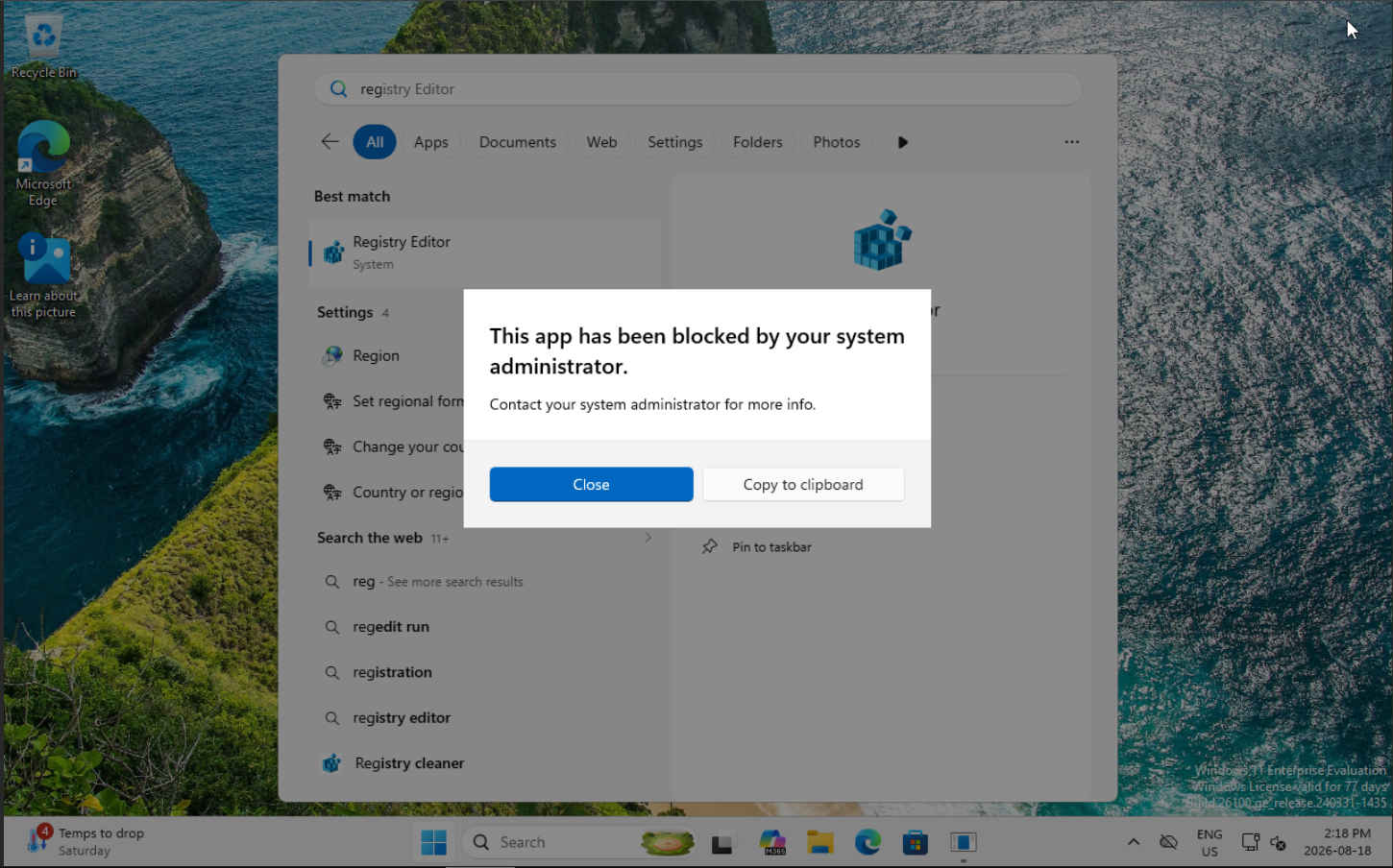
The enforced policy displayed the expected system-administrator block message
for the everyday user on August 18, 2026. The recovery identities remained
outside GG-Lab-Users, and the GPO rollback path was documented. Together,
these checks validated the Group Policy and application-control design.
Recovery and rollback
- Keep the local administrator credentials available.
- Keep the initial collection in Audit only until audit events are visible.
- Preserve all three default executable rules.
- To stop the experiment, unlink or disable
GPO-Workstation-AppLocker, refresh policy, and restart the client. - Never modify ACLs on
C:\Windows\regedit.exefor this exercise.